Configuring Audit
Audit monitors and records changes in a system, providing clear visibility, accountability, and a history of user actions for compliance and troubleshooting.
-
From the EPM User Interface screen, select Options
 - Settings and Users - Settings: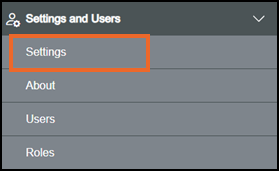
-
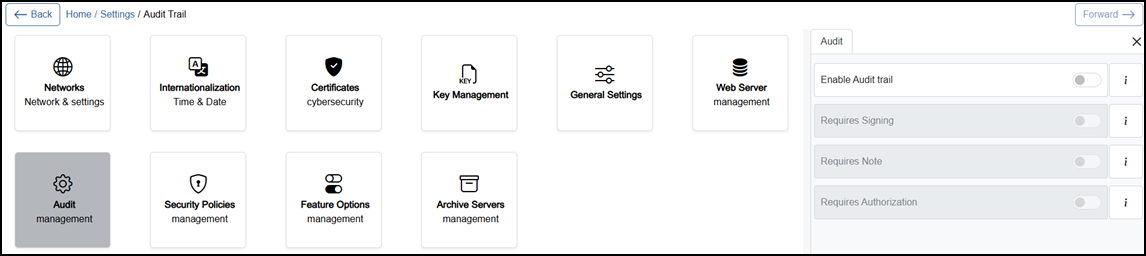
The Settings screen displays, select Audit management which then displays on the right-hand side of the screen:
-
If you are not already in Configuration lock, the Configuration lock screen displays
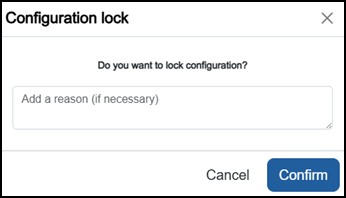
Enter a reason if required and then select Confirm
 . The system configuration is now locked pending the submission of your update and the Configuration Locked
  icon displays on the status bar.Note - Configuration lock does not affect the operation of the EPM device.See Configuration Lock for details.
 -
Complete as required:
-
Enable Audit Trail (available only when the Audit Trail is enabled from the Feature Options) - Off
 by default. Change to On
  to record user actions such as changing device settings, managing users and permissions, acknowledging alarms and logging in or out in the audit log. Records include the time, user, source, and action.
 -
Auditor Full options - The following features are available only when you enable Auditor Full from Feature Options and have the Can sign changes, Can add Audit note and Can authorize permissions, see Configuring Feature Options for details:
-
Requires Signing - Off
by default. When On any action must be signed before it can proceed. You must re-enter the password to make any changes. -
Requires Note - Off
by default. When On you must enter a note before any action can proceed. -
Requires Authorization - Off
by default. When On the action must be signed and then authorized by a different user with the authorize permission before it can proceed. The authorizing user must enter their username and password.Note - Requires Authorization cannot be used on its own. Requires Signing must also be enabled, and the action must be signed before it can be authorized.Note - Auditor Full includes Audit Trail features plus signing and authorization. If both are enabled, Auditor Full applies.
-
-
-
Once complete, select Review pending changes
 screen to review updates to the configuration, and submit them. See Reviewing and Submitting Changes for details if required.Note - Reviewing and submitting can be completed in bulk once you have completed all your additions and/or updates.
Last update - September 2026